
訂單管理
已更新:2025年6月3日
訂單是快速建立和顯示相應記錄,包括訂單的製造、出貨紀錄, 以估算出理論成本。訂單類型包括:報價單、銷售訂單、內製訂單等。
以下介紹訂單管理相關的單據, 進入訂單管理畫面

1. 銷售訂單
銷售訂單主要是客戶的正式訂單記錄
1.1.新增銷售訂單
點擊按鈕"新增銷售訂單", 如下圖
此為訂單金額是未稅金額

在新視窗中,填寫銷售訂單資料(注意帶有「*」符號的欄位為必填)
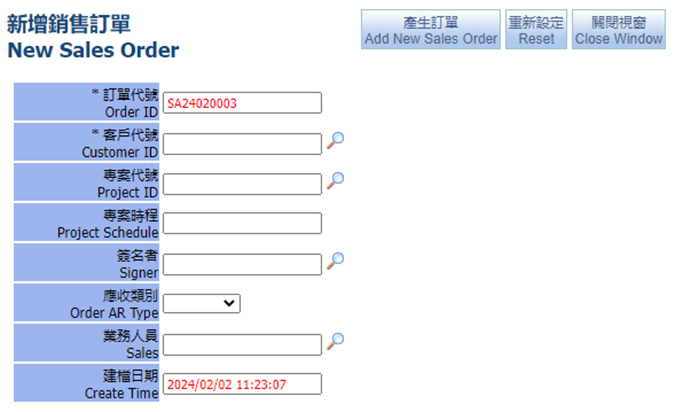

可使用"放大鏡"來搜尋您需要的客戶。選擇客戶後,點擊"產生訂單"以建立新訂單

產生後將開啟一張新訂單

在單頭可輸入相關欄位如 :客戶訂單號碼、出貨倉庫、訂單抬頭、備註等。以上欄位為非必填
完成後點擊"儲存"
1.2. 新增內含稅訂單
點擊"新增訂單(內含稅)",如下圖
此為訂單金額是含稅金額,可自動計算未稅及稅額

在新視窗中,填寫銷售訂單資料(注意帶有「*」符號的欄位為必填)

可使用"放大鏡"來搜尋您需要的客戶。

選擇客戶、項目預設稅率後,點擊"產生訂單"以建立新訂單

新增內含稅訂單後,會出現如下畫面

1.3. 編輯
此畫面可讓您編輯銷售訂單,例如新增訂單項目、出貨時程等。

1.3.1. 新增訂單項目
在訂單項目的活頁中,點擊「新增訂單項目」按鈕以搜尋訂單項目

開啟搜尋產品畫面,可利用各種搜尋條件找到需要的品項進而新增項目,例如選擇客戶產品中的項目,勾選後送出
注意: 如果是個人客戶,可點選「搜尋產品」, 如果是公司客戶常用物品可選「客戶產品」。

新增完畢後,如需新增其他項目則繼續操作,也可更換頁面搜尋,完成後右上角close關閉此視窗。
注意:您可以選擇一個或多個項目,然後關閉產品搜尋畫面(可以從同一搜尋畫面一次選擇多個項目。您必須在離開搜尋畫面之前點擊「送出已選取之產品」才能查看/新增其他搜尋中的其他項目畫面)。返回訂單畫面將看到新增的項目

回到訂單畫面中輸入相關資訊如數量、單價等,資料填完後按"儲存",點擊刪除鍵可刪除訂單項目,如果選擇了送貨方式,則會顯示送貨費用
新增出貨時程
在下方的出貨時程中,必須要產生預計出貨項目,後續根據此計畫出貨。
在訂單出貨中可以新增多個出貨時程,在備註字段中輸入文字,完成後按儲存
如果要新增第二個出貨時程,請像第一個出貨時程一樣繼續執行出貨:

或是可利用自動設定出貨時程,系統將自動分配出貨時程已加速操作

設定出貨時程後,會出現"新增出貨單",訂單簽核至進行中亦能產生出貨單,
詳情請見新增出貨單

1.3.2. 訂單項目(可用庫存)
在此畫面可查詢各訂單項目的庫存狀態

1.3.3. 列印
在列印畫面中可選取報表名稱>搜尋來列印


1.3.4. 出貨時程
若有設定出貨時程,則會在此活頁顯示項目

下方亦可察看出貨紀錄

1.3.5. 收款設定
在此畫面中您可以設定相關的收款設定、送貨和發票資訊


1.3.6. 訂單備註
可填入相關出貨資訊的備註,或使用勾選來選取

例如:付款方式備註,選取付款方式,點擊加入

自動帶入付款方式備註,然後點擊儲存

1.3.7. 相關應收
在此畫面中您可以看到相關的應收帳款

1.3.8. 相關收款
您可以在此活頁中找到相關收款單據。如果沒有資訊,則該收款單尚未建立。

1.3.9. 相關電子郵箱
此畫面顯示相關電子郵件,您可以透過點選「新增電子郵件」按鈕建立新郵件

1.3.10. 相關聯絡單/簽呈
在此活頁中,可以搜尋相關聯落單/簽呈。或者您可以點擊「新增聯絡單」/「新增簽呈」來建立新單單據:

1.3.11. 相關客服紀錄
此畫面顯示與客戶互動的記錄

1.3.12. 相關製令/工令
此畫面顯示相關製令單據:
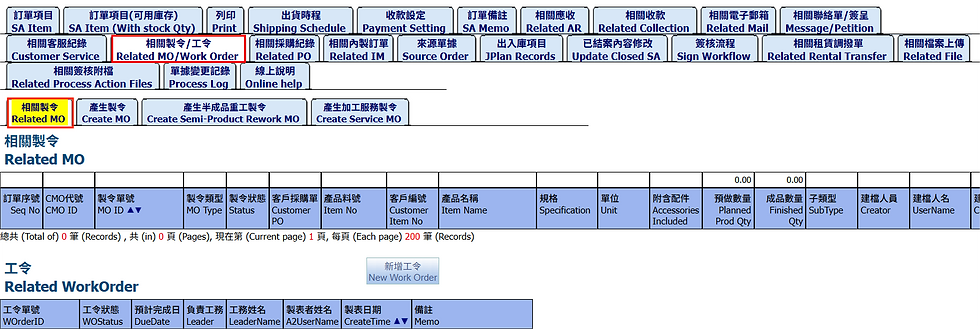
產生製令
您可以選取項目,然後按一下「新增製令」以建立新的製令

產生半成品重工製令
在此畫面中,您可以查看待重工的半成品的製令單據。您也可以選擇項目並點擊“產生重工製令”來新增項目。

產生加工服務製令
在此活頁中,您可以為服務項目建立製令,選擇該項目並點擊「新增製令」來新增項目。

1.3.13.相關採購紀錄
顯示與採購相關的訂單項目、採購單、採購項目等

亦可新增採購單,選取訂單項目,然後點擊"新增採購單"

1.3.14. 相關內製訂單
顯示與銷售訂單相關的內部訂單,即公司內部產生的訂單。

1.3.15. 來源單據
顯示該訂單的來源單據,例如報價單和預估訂單。

1.3.16. 出入庫項目
可查看訂單相關之出貨項目

1.3.17. 已結案內容修改
當單據結案時不可再修改欄位,如需修改訂單抬頭或備註可在此活頁做修改

1.3.18. 簽核流程
在此畫面中,您可以查看目前為該文件定義的審核流程

執行訂單手動簽核的方式如下: 點擊"簽核",進入簽核單

簽核單畫面如下>點擊"簽核"

簽核批准有許多步驟:
草稿 -> 發起:銷售人員,發起 -> 簽核 -> 關閉
備注:簽核服務項目訂單,只需一步:簽核->關閉
取消簽核訂單:批准 -> 取消

如利用"自動提交簽核"則會自動執行上述步驟, 簽核的處理結論將選擇第一個選項, 訂單單頭也可先預覽得知下個步驟
1.3.19. 相關租賃調撥單

1.3.20. 相關檔案上傳
在此畫面可上傳相關檔案, 通常為圖檔或文字檔

1.3.21. 相關簽核附檔
在此畫面可查看簽核單的附檔紀錄, 如需進行附檔則需要進入簽核單

1.3.22. 單據變更記錄
在此畫面可查看此單據的變更紀錄, 紀錄變更人員、變更時間和變更欄位

1.3.23.線上說明
在此畫面可查看線上說明文件或是幫助內容, 如需進行上傳文件作業需要進入簽核流程的設定頁面

1.4. 進行中訂單
此畫面顯示所有訂單的進行中單據, 進入訂單管理畫面>銷售訂單>進行中訂單

1.5. 草案訂單
此畫面顯示所有訂單的草案單據, 進入訂單管理畫面>銷售訂單>草案訂單

1.6. 搜尋訂單
此畫面顯示所有訂單的單據, 進入訂單管理畫面>銷售訂單>搜尋訂單

1.7. 搜尋已接訂單
此畫面可搜尋所有”進行中”和”結案”的訂單,顯示兩個狀態的訂單
進入訂單管理畫面>銷售訂單>搜尋已接訂單

1.8. 搜尋訂單項目
此畫面可查詢所有訂單項目

1.9. 訂單出貨時程表
可查詢訂單出貨時程的相關資料,填入預計出貨日的範圍>搜尋

可列印訂單的出貨明細報表

1.10. 訂單出貨時程項目
可查詢訂單出貨時程所有項目

1.11. 訂單應收/收款
可查詢訂單之後應收及收款等金額的資料

1.12. 搜尋待交未出訂單

1.13. 我的簽核
此畫面顯示所有自己需要簽核的訂單,可批次簽核單據

2. 經銷商訂單
2.1.新增經銷商訂單
點擊”新增經銷商訂單”新增單據

新增畫面如下,填入以下資訊(*為必填)

點擊放大鏡圖樣可搜尋客戶代號, 客戶細分類為經銷商
選擇客戶代號(必填)後點擊"產生訂單”來建立單據

產生後將開啟一張新經銷商訂單

2.2. 編輯經銷商訂單
2.3. 進行中經銷商訂單
此畫面顯示狀態為進行中的經銷商訂單

2.4. 草案經銷商訂單
此畫面顯示狀態為草案的經銷商訂單

2.5. 搜尋經銷商訂單
此畫面顯示所有狀態的經銷商訂單

3. 報價單
顯示所有報價單,亦可新增報價單
3.1. 新增報價單
點擊”新增報價單”新增單據

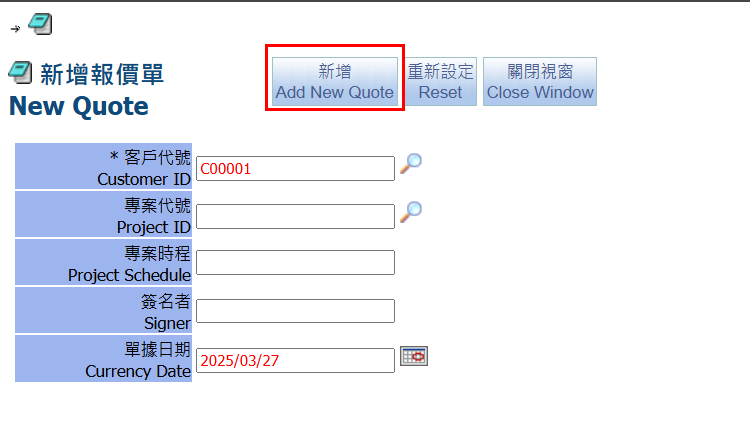
新增畫面如下,填入以下資訊(*為必填)

點擊放大鏡圖樣可搜尋客戶代號

選擇客戶代號(必填)後點擊"新增”來建立單據

單據最上面可做刪除、儲存等動作

3.2. 報價單編輯
進入報價單編輯畫面報價單編輯可做編輯動作,如新增報價單項目等
3.2.1. 報價單項目
點擊”新增報價項目”來新增項目


顯示搜尋產品畫面,可依照客戶產品、查詢物料等活頁來尋找物料,
選取打勾後>點擊”新增已選取之產品”,完成後按右上角close關閉畫面
新增後,報價項目畫面如下:
注意:您可以選擇一項或多項,然後關閉產品搜尋畫面。
返回報價畫面將看到新增的項目

填入單價後,選擇計價單位,例如計價單位填入公斤,系統會將小計轉換為金額

3.2.2. 報價項目(可用庫存)
在此畫面中您可以看到每個商品的可用庫存

3.2.3.列印
可列印報價單報表,選擇報表名稱>搜尋

選擇報告並匯出為 .pdf 文件

報價單報表如下:

3.2.4. 收款及發票設定
在此畫面中您可以設置相關的收款設定:

3.2.5. 報價單備註

您可以將內容填寫到「包裝方式備註」、「付款方式備註」、「交貨期備註」或「特別備註」欄位中,然後儲存。
此外,可以使用下面的子活頁新增預設備註

3.2.6. 相關訂單
在“相關訂單”裡,我們可以在此處將報價單轉成訂單,如果需要,選擇一個新的訂單項目,
之後選擇要轉移到訂單的報價單項目:

如果您想更改訂單的”項目料號”,您可以使用放大鏡搜索您想要的料號,然後點擊“轉訂單”:

使用搜索條件,如物料種類,查找您要更改的產品料號>搜尋, 選取後自動關閉搜尋畫面

料號選取後,點擊"轉訂單

填出視窗詢問確定產生訂單,若系統顯示"草案"狀態無法產生訂單,須將單據簽核至"進行中",
才能產生訂單


系統將打開訂單編輯畫面,顯示您建立的訂單項目:


在來源報價單畫面上,您還可以看到建立的相關訂單項目:

3.2.7. 已結案內容修改
可修改已結案之報價單的標題和備註

後方的幾個標準功能的分頁與銷售定單相似, 可參考銷售訂單的介紹

3.3.進行中報價單
可查詢所有狀態為"進行中"之報價單據

3.4. 草案報價單
可查詢所有狀態為"草案"之報價單據

3.5. 搜尋報價單
可查詢所有狀態的報價單據

3.6. 我的簽核
至我的簽核,可批次簽核報價單據

4. 內製訂單
4.1. 新增內製訂單
點擊"新增內製訂單",可建立新內製單據

填入客戶代號後,點擊”新增”

4.2. 編輯內製訂單
新增後進入編輯畫面

4.2.1. 訂單項目
在編輯畫面中,點擊"新增項目",如下列畫面

勾選項目,填入數量>新增已選取之產品

回到內製訂單畫面可看到已選的項目

4.2.2. 列印

4.2.3. 相關電子郵箱
此畫面顯示相關電子郵件,亦可點擊”新增郵件”建立新的郵箱

4.2.4. 相關聯絡單/簽呈
在此畫面可查詢相關聯絡單/簽呈,亦可點擊"新增聯絡單/簽呈"來增加

4.2.5. 相關檔案上傳
在此畫面可上傳相關檔案, 通常為圖檔或文字檔

4.2.6. 相關製令
此畫面顯示與訂單相關的製令

相關製令
可查詢相關製令

產生製令
選取打勾,點擊"產生製令",可建立新的製令

產生重工製令
選取項目後點擊"產生重工製令"來新增

需求來源製令單
查詢與MRP推料相關的製令單

4.2.7. 相關採購紀錄
顯示與採購相關的訂單項目、採購單等

後方的幾個標準功能的分頁與銷售定單相似, 可參考銷售訂單的介紹

4.3. 進行中單據
此畫面顯示所有內製訂單的"進行中"單據

4.4. 草案單據
此畫面顯示所有內製訂單的"草案"單據

4.5. 搜尋內製訂單
此畫面顯示所有狀態的內製訂單單據

4.6.我的簽核
此畫面顯示所有自己需要簽核的訂單,可批次簽核單據

5 . 內部報價
可將內部報價單轉成正式的內製訂單
5.1. 新增內部報價
點擊”新增內部報價”新增單據

點擊”新增”以產生單據
5.2. 編輯內部報價單
進入內部報價單編輯畫面可做編輯動作,如新增內部報價單項目等

5.2.1. 內部報價單項目
點擊”新增產品項目”,畫面顯示如下:

選取打勾並填寫“數量”,然後點擊“新增已選取之產品”。完成後按右上角close關閉畫面

回到內部報價單畫面可看到已選的項目

5.2.2. 內部報價單項目(可用庫存)
在此畫面中您可以看到每個商品的可用庫存。

5.2.3. 列印
可列印預估訂單報表

5.2.4. 客戶設定
在此畫面中您可以設置相關的收款設定和送貨資訊:

5.2.5. 相關內部訂單
可將內部報價單項目轉成內製訂單,以及顯示與內部相關的訂單項目

後方的幾個標準功能的分頁與銷售定單相似, 可參考銷售訂單的介紹

5.3. 草案內部報價單
可查詢所有草案的內部報價單

5.4. 未確認報價
可查詢所有未確認的內部報價單

5.5. 進行內部報價單
可查詢所有進行中的內部報價單

5.6. 我的簽核
至我的簽核,可批次簽核訂單單據

6 . 預估訂單
顯示所有預估訂單,亦可新增預估訂單
6.1. 新增預估訂單
點擊”新增預估訂單”新增單據

新增畫面如下,填入以下資訊(*為必填),完成後點擊"新增預估訂單"


新增後進入預估訂單編輯畫面

6.2. 預估訂單編輯
進入預估訂單編輯畫面可做編輯動作,如新增訂單項目等
6.2.1. 訂單項目
點擊”新增訂單項目”,畫面顯示如下:

選取打勾並填寫“數量”,然後點擊“新增已選取之產品”。完成後按右上角close關閉畫面

回到訂單項目畫面會看到新增的物料

6.2.2. 訂單項目(可用庫存)
在此畫面中您可以看到每個商品的可用庫存。

6.2.3. 列印
可列印預估訂單報表,選擇報表名稱>搜尋

6.2.4. 收款及發票設定
在此畫面中您可以設置相關的收款設定:

6.2.5. 訂單備註
您可以將內容填寫到「包裝方式備註」、「付款方式備註」、「交貨期備註」或「特別備註」欄位中,然後儲存。
此外,可以使用下面的子活頁新增預設備註

6.2.6. 相關訂單
在“相關訂單”裡,我們可以在此處從預估訂單轉成訂單,
如果需要,選擇一個新的 訂單項目,然後選擇要轉移到訂單的預估訂單項

後方的幾個標準功能的分頁與銷售定單相似, 可參考銷售訂單的介紹

6.3. 進行中預估訂單
可查詢所有狀態為"進行中"的預估訂單

6.4. 草案預估訂單
可查詢所有狀態為"草案"的預估訂單

6.5. 搜尋預估訂單
可查詢所有狀態的預估訂單

6.6. 預估訂單報表
顯示預估訂單的報表,並可列印

6.7. 預估訂單與銷售金額比較表
一個範圍期間內的預估訂單與銷售訂單金額之比較
如:統計期間為2024/01/01~01/31,對照時間為2024/01/01~01/31

6.8.我的簽核
至我的簽核,可批次簽核訂單單據

7. 目標訂單
顯示所有目標訂單,亦可新增目標訂單
7.1.新增目標訂單
點擊"新增目標訂單"新增單據

填入以下資訊,完成後按"新增"

7.2.目標訂單編輯
新增後畫面如下:
可編輯訂單,如新增訂單項目

7.2.1. 訂單項目
在訂單中,可新增訂單項目,點選”新增訂單項目”

選取項目並填入數量,點擊”新增已選取之產品”,完成後右上角close關閉此視窗

在訂單畫面會看到已新增的訂單項目

7.2.2. 訂單項目(可用庫存)
在此畫面可查詢各訂單項目的庫存狀態

7.2.3. 列印
在列印畫面中可列印報表

7.2.4. 收款及發票設定
在此頁面可設定收款條件和送貨設定

後方的幾個標準功能的分頁與銷售訂單相似, 可參考銷售訂單的介紹

7.3. 進行中進行目標訂單
可查詢所有狀態為"進行中"的目標訂單

7.4. 草案目標訂單
可查詢所有狀態為"草案"的目標訂單

7.5. 搜尋目標訂單
可查詢所有狀態的目標訂單

7.6. 自客戶快速產生目標訂單

7.7. 我的簽核
至我的簽核,可批次簽核報價單據

8. 樣品申請單
顯示所有樣品申請單,亦可新增樣品單
8.1. 新增樣品申請單
點擊"新增樣品申請單",可建立新樣品單據

點擊"新增樣品申請單"後,畫面如下:

點擊放大鏡圖樣可搜尋客戶>選取

填入客戶代號後,點擊”新增”

進入樣品單編輯畫面,最上面可刪除單據、複製樣品單等功能

8.2. 樣品單編輯
樣品單項目
在編輯畫面中,點擊"新增訂單項目",如下列畫面:

勾選項目,填入數量>新增已選取之產品,右上角close關閉畫面

回到樣品單畫面可看到已選的項目

8.2.1. 樣品單項目 (可用庫存)
在此畫面中您可以看到每個商品的可用庫存。

8.2.2. 列印
可列印樣品單,選擇報表名稱>搜尋

8.2.3. 收款設定
在此畫面中您可以設置相關的收款設定:

8.2.4. 出貨時程

後方的幾個標準功能的分頁與銷售定單相似, 可參考銷售訂單的介紹

8.3. 進行中樣品單
可查詢所有進行中樣品單據

8.4. 草案樣品單
可查詢所有草案樣品單據

8.5. 搜尋樣品單
可查詢所有樣品單據

9. 新增出貨單
訂單設定出貨時程後,單據簽核至進行中後可新增出貨單
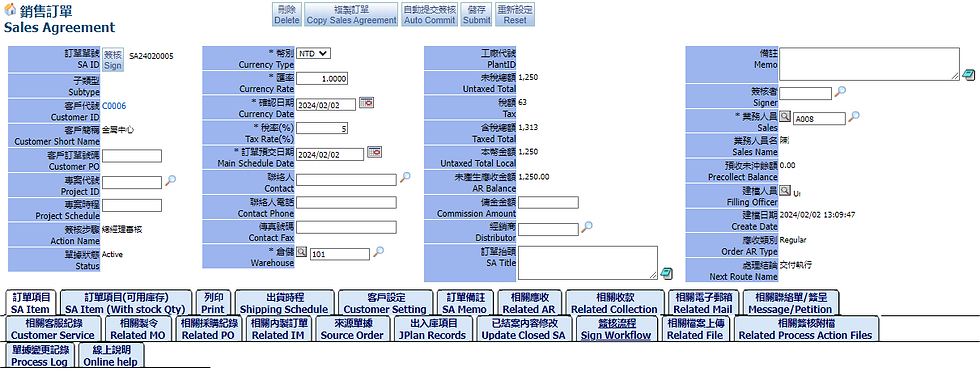

在訂單交貨時程中,點擊“新增出貨單”按鈕,出現以下畫面:

一般自出貨時程項目新增的出貨單並不會帶入庫存資訊如批號、儲位、庫存重量等,
點擊”產生出貨單”

因此在此示範A1系統常用的產生出貨單-從庫存, 由此產生的出貨單是從庫存挑選, 因此可清楚的查看批號、庫存重量, 可利用客戶或訂單搜尋, 系統將會列出所有可以出貨的庫存品項, 同樣的訂單序號可能因為庫存批號有多筆, 因此僅需要挑選需要的批號, 產生後系統會自動預設合併明細, 將相同料號的訂單項目為預計出貨項目並自動指定庫存在實際出貨項目。

產生後畫面轉至草案單據, 點選出入庫單號"UCSD24020003”,進入編輯畫面

9.1. 出貨單編輯

畫面最上面可刪除、儲存等功能,單頭部分可填入:收貨客戶、狀態、出貨日期...
-> 檢查所有資料並在需要更改時更正。
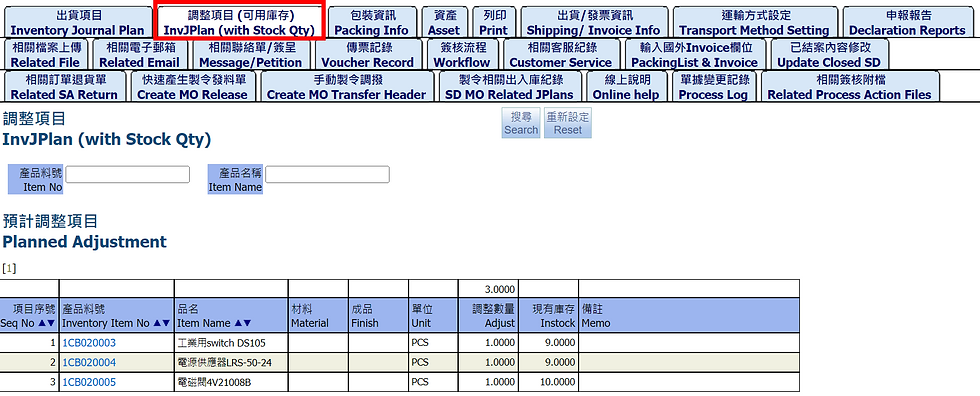
9.2. InventoryJournalPlan
This local record is the result of merging details based on order items.

The actual shipping items below will record the shipping records of actual inventory details.

You can quickly create the receivable at the bottom. Before create, you must first confirm that the SA Shipping is in active or close.

This tab can query the inventory of expected shipping items. The inventory may not be displayed correctly due to the merged details of shipping order items.
9.4 Packing info
Search related packaging information

9.5. Asset

9.6. Print
Reports related to shipping orders can be printed as PDF files.
Enter the report name > Search

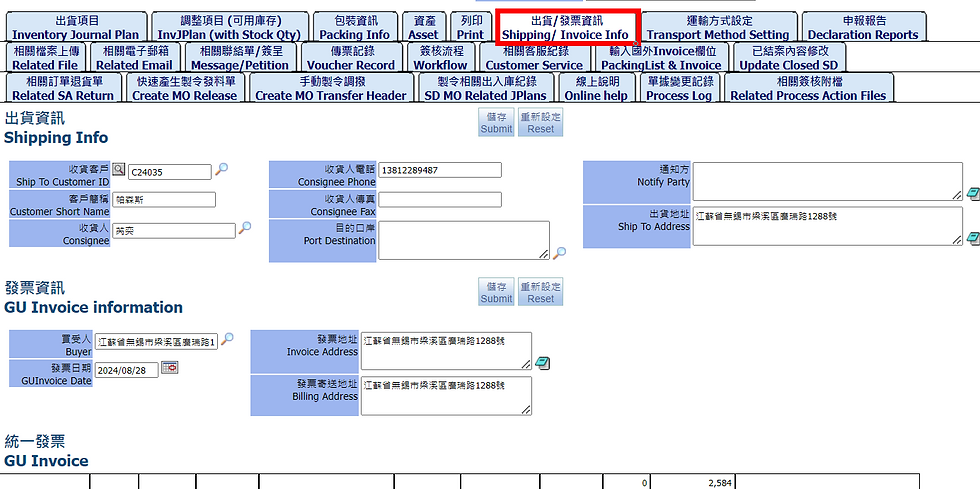
9.7. Shipping/ Invoice Info
To query shipping and invoice information related to shipping orders
9.8. Transport Method Setting
This is to set the conveyance and distance to calculate carbon emissions. For details, please see ESG Management

9.9. Declaration Reports
To query declaration information, such as packaging declaration, good declaration, etc.

9.10. Related File
In this screen, you can upload related files, usually images or text files.

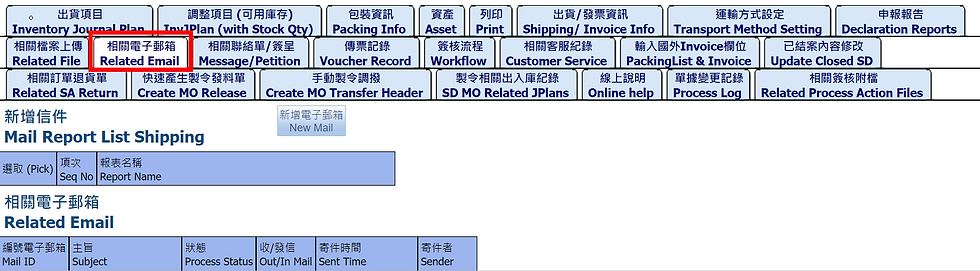
9.11. Related Email
This screen displays related emails. You can also click "New Email" to create a new email.
9.12. Message/Petition
On this screen, you can query related Messages/ Petitions, or click "New Message"/ "New Petition" to add them.

9.13. Voucher Record
Can view and create new voucher in tab Voucher Record. After clicking "Create Voucher" button, you will be transferred to Voucher Management to quickly generate voucher. If a voucher has been created, it will be displayed in tab Voucher Record.

9.14. Workflow
In this screen, you can view the approval process currently defined for this document.

9.15. Customer Service
To display records of transactions with customers

9.16 Packing List & Invoice
This tab, you can fill in the related packaging list and invoice of the shipping order from abroad.
Note: These fields is in international standard information

9.17. Update Closed SD
Can be modified content on this screen. The content cannot be changed when the document status is closed. However, some comment fields can be changed here without affecting important data.

9.18. Related SA Return
You can check the relevant order return transactions, or click "Create SA Return" to generate a return document. For details, please see "8.Create SA Return"

9.19. Create MO Release

9.20. Create MO Transfer Header
Click "Create MO Transfer" to generate a transfer transaction.

9.21. SD MO Related JPlans
Fill in the search criteria to search records related to the MO order

MOrder ID can be found in the shipping items

9.22. Online help
On this screen, you can view online documents or help content. If you need to upload files, you need to enter the setting page of the approval process.

9.23. Process Log
In this screen, you can view the change record of this shipping transaction, which will record the change person, change time and change field.

In this screen, you can view the attachment records of the approval form. If you need to attach files, you need to go the approval form.

10. Create SA Return
In Sales Agreement screen, you can see shipping transaction ID in Shipping Record at the bottom of tab Shipping Schedule, the transaction is close
In Other Warehousing Record, click “New SA return”


After adding an SA return transaction, you will go the following screen:

Choose setting:
Note:
Shipping: goods are shipping
ReShip: return goods, then supplier will reship goods
NoReship: return goods, but the supplier will not reship goods
After completing, click "Submit" to create new transaction.
After creating, enter the editing screen and click “Add SA Return Items”.

Search for items > Pick choose item > Submit, then close the upper right corner to close the screen

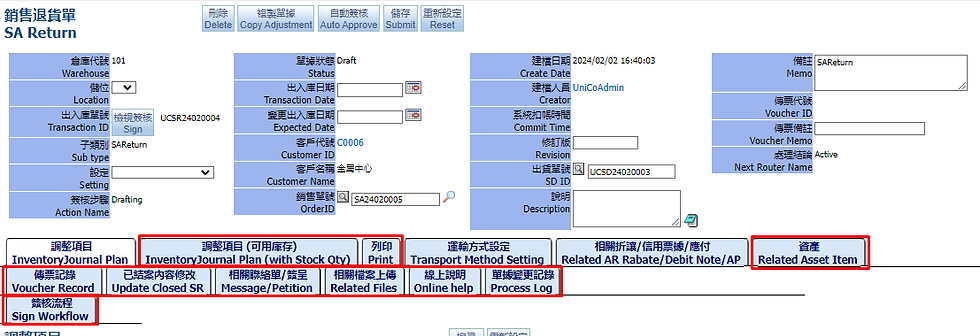
Another method is to generate a SA Return from SA shipping transaction. This method is more convenient. You can directly bring in the source shipping item information and SA information. After choose the items that need to be returned, the return order can be generated (the shipping transaction needs to be closed first)

SA returns after created can be viewed below. Click on the transaction ID to go to the return screen.


The system will automatically bring in the return item and link it to the source shipping transaction and SA order, you can be view on the right.

At "Related AR Rabate/Debit Note/AP" tab, you can create related discounts/ credit notes/ payables to handle discounts or payments due to returns.

The other tab is similar to the SA shipping transaction. Please refer to the description of SO Shipping.
11. Search Orders
This screen can search all orders, such as sales orders, quotations, IM orders, etc.
As well as Order Item and Confirmed Sales Items

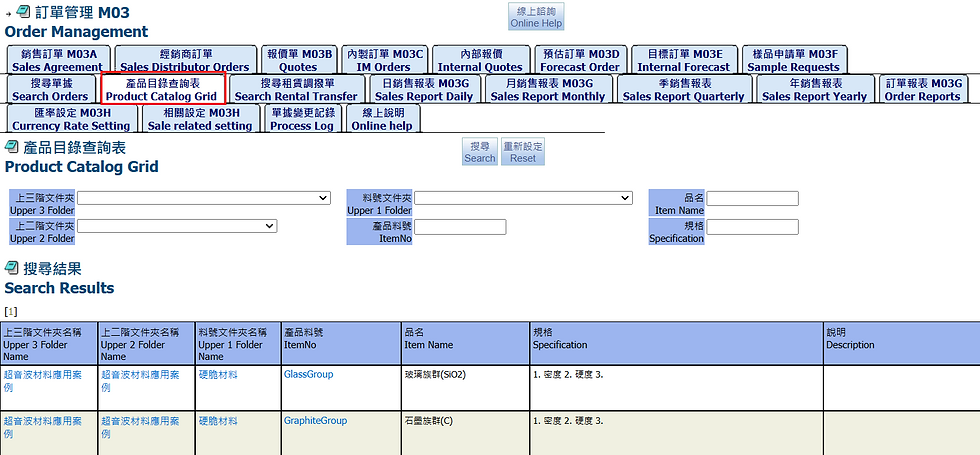
12. Product Catalog Grid
This tab is to check product catalog
13. Search Rental Transfer

14. SA Summery report
14.1. Sales Report Daily

On “Sale Report Daily” tab, there are 6 small tabs: Date, Date & Customer, Date & Items, Items, Customer & Items, Customer.
14.1.1. Date
This tab is to search SA quantity and total amounts by date.

14.1.2. Date, Customer
This tab is to search SA quantity and total amounts by date and customer.

14.1.3. Date, Items
This tab is to search SA quantity and total amounts by date and item no.

14.1.4. Items
This tab is to search SA quantity and total amounts by item no.

14.1.5. Customer, Item
This tab is to search SA quantity and total amounts by customer and item no.
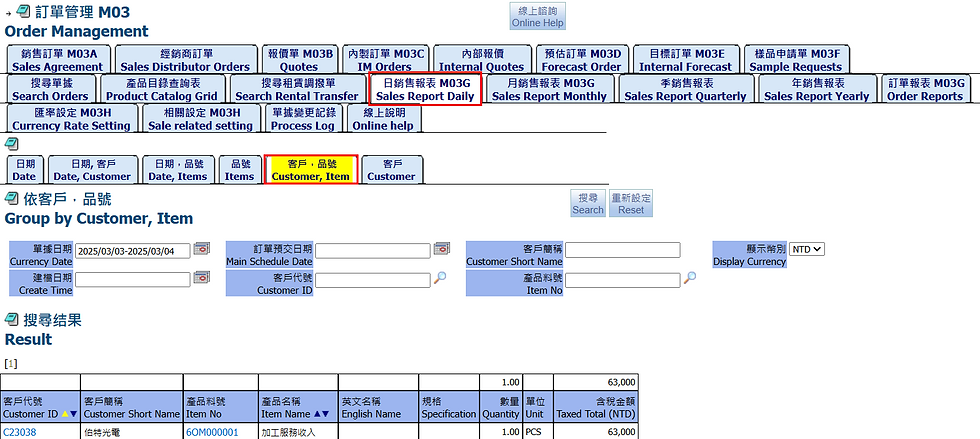
14.1.6. Customer
In “Customer” tab, it includes some fields: customer ID, Customer Short Name, Display currency. Enter your search conditions. You can find result in the report.

14.2. Sales Report Monthly
On “Sale Report Monthly” tab, there are 2 small tabs: Customer and Items

14.2.1. Customer
On “Customer” tab, click on the search icon to find the customer, the new screen opens.

Pick on Customer ID => Search

14.2.2. Items
This tab is to search sales amount monthly by items

14.3. Sales Report Quarterly
On the "Sales Report Quarterly" tab, there are four options: customer, sales, order ID and item no.

14.3.1. Customer
Click on the search icon to find the customer, the new screen opens. Pick on Customer ID => Search.


14.3.2. Sales
This tab is to search sales total amount by sales person

14.3.3. Order ID
This tab is to search sales total amount by Order ID.

14.3.4. Item
This tab is to search sales total amount by Item No.


14.4. Sales Report Yearly
In the "Sales Report Yearly" tab, there are four options: customer, salesl, order ID and Item no.

14.4.1. Customer
Click the magnifying glass to select customer ID> select and press search


14.4.2. Sales
This tab is to search sales total amount yearly by sales person.

14.4.3. Order ID
This tab is to search sales total amount yearly by OrderID.

14.4.4. Item
This tab is to search sales total amount yearly by item no.


14.5. Order Reports
This screen is to print order reports.

14.5.1. SA Delivery Shipped Detail
Search reports based on shipping schedule details

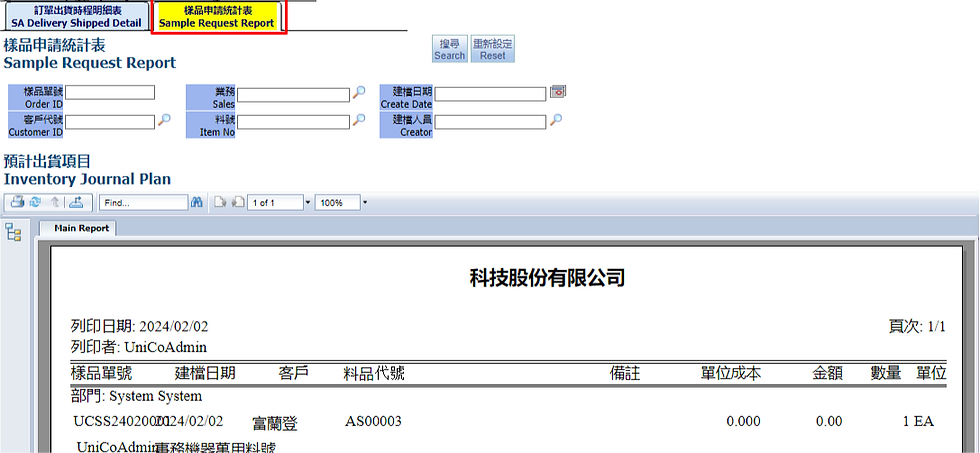
14.5.2. Sample Request Report
Search the report according to the sample request transactions.
15. Currency Rate Setting

15.1. Customer Currency Rate
Can set exchange rate in "Currency Rate Setting"

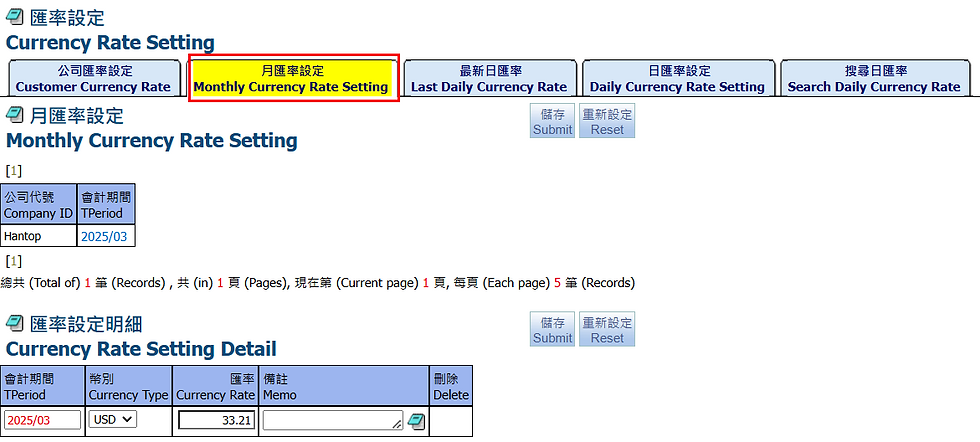
15.2. Monthly Currency Rate Setting
This tab is for setting currency and exchange rate based on accounting period
15.3. Last Daily Currency Rate
This tab is to view daily exchange rates

15.4. Daily Currency Rate Setting
Can set daily exchange rate in this tab

15.5. Search Daily Currency Rate
Select the range of Currency Date > Search daily currency rate

16. Sale related setting
You can go to SA Related Settings > such as delivery date remarks and set items

17. Process Log
In this screen, you can view the change records in order transactions, which will record the change person, change time and change field.

18. Online help
On this screen, you can view online documents or help content. If you need to upload files, you need to enter the setting page of the order approval process.

You can add filter items

After adding

End.