
Order Management
Updated: Jun 2, 2025
Order Fulfillment is the fast creation and display of corresponding records, including records of manufacturing, shipping. So that can estimate theoretical cost. Order type includes: Quotation, Sales Agreement.
Home page => Operation => Order Management => UI Order Management

1. Sales Agreement
Sales orders are mainly formal order records from customers
1.1. Create Sales Agreement
Click on the button as figure below

In new window, fill information for Sales Order (note information have symbol “*” is request input)
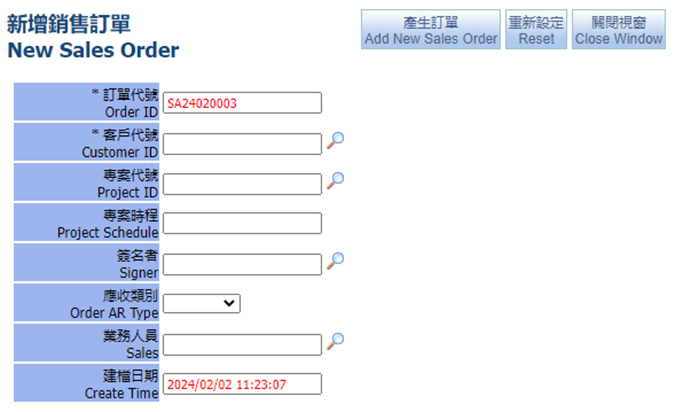
Click on the search icon to find customers.

Select a customer you need by clicking the Pick button. Search screen will turn off. Then back to the screen, click Add New Sale Order button. The SA screen appears.

After creating SA successfully, the following screen will appear.

Sales agreement info where required:
Customer PO: only if supplied / not compulsory only for your reference
Select Warehouse from which product will be taken
SA Title: only if supplied / not compulsory only for your reference
Memo: not compulsory only for your reference
After click Submit button above.
1.2. Create Taxed Unit Price SA
Click on the button "Create Taxed unit Price SA".

In new window, fill information for Sales Order (note information have symbol “*” is request input)

Click on the search icon to find customers

Select a customer you need by clicking the Pick button. Search screen will turn off. Then back to the screen, choose “Item Default Tax Rate” and click Add New Sale Order button. The SA screen appears.

After creating SA successfully, the following screen will appear

1.3. Edit
This screen allows you to edit sales orders, such as adding new order items, shipping schedule, etc.

1.3.1. SA Item
At SA, click on “Add Order Items” button to search order items

The following screen will show, having the correspond Tabs to group of items (products) want to add into current SA. When searching for items, items can be search by.
Item no
Item name, if all name is not known, input part name: %Gate%
Customer Item no (only when searching customer items)
Mid type or sub type
Then, click on "Search" button, choose and submit items.

After the addition is completed, if you need to add more items, continue the operation, or you can change the page search. After completion, close the window in the upper right corner.

If you require to change description/price / quantity/etc it can be done from this screen. Once changes are made click on submit. Items can be deleted by clicking on delete button. If deliver way has been selected, the delivery charges will appear.
Create order delivery schedule
In the Order delivery schedule can create multiple delivery schedules, type text into the memo field and then click "Submit", result was a delivery schedule has been created. If you want to create a second shipping schedule, keep creating the delivery schedule like the first delivery schedule.

Or you can use the automatic setting of shipping schedule, and the system will automatically allocate the shipping schedule to speed up the operation.

After setting the shipping schedule, "New Shipping Order" button will appear. Shipping orders can also be created after the order is approved and is in active. For details, please see “Create SO Shipping”.

1.3.2. SA Item (With stock Qty)
In this screen you can see the inventory status of each order item.

1.3.3. Print
In the print screen, you can select the report name > Search to print.


1.3.4. Shipping Schedule
If a shipping schedule is set, the items will be displayed on this page.

You can check the shipping records

1.3.5. Payment Setting
In this screen you can set related payment setting, delivery and invoice information


1.3.6. SA Memo
You can fill in relevant shipping information in memo,or pick the memo to select

For example: Payment Memo, pick payment memo, click “Add New”

Automatically bring the payment memo, then click “Submit”

1.3.7. Related AR
In this screen you can see related account receivable

1.3.8. Related Collection
You can find related collection in this tab. If there is no information, the collection has not been created yet.

1.3.9. Related Mail
This screen shows related Email, you can create new mail by clicking on “New Mail” button

1.3.10. Message/Petition
At this tab, can search related message/ petition. Or you can create new transaction by clicking on “New Message”/”Add Petition”.

1.3.11. Customer Service
This screen displays records of interactions with customers

1.3.12. Related MO/Work Order
Related MO
This screen shows related Manufacture Order.
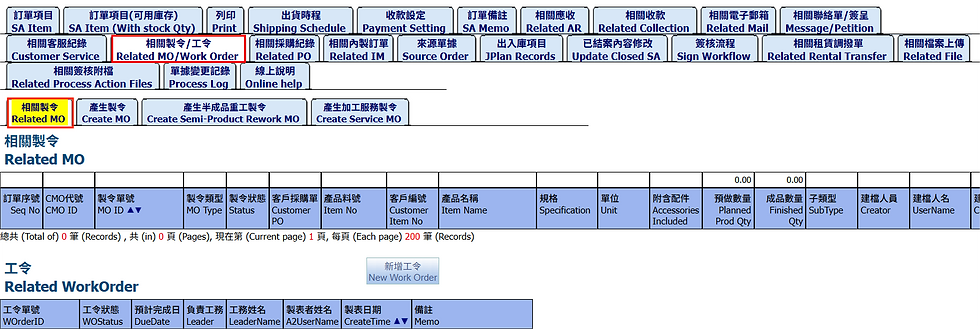
Create MO
You can pick choose item, then click Create MO to create new MO

Create Semi-Product Rework MO
In this screen, you can view the manufacture orders for semi-finished products to be reworked. You can also select the items and click "Create Rework MO" to add a new one.

Create Service MO
In this tab, you can create MO for service items, you can select the item and click "Create MO" to add a new one.

1.3.13. Related PO
Display purchase-related order items, purchase orders, purchase items, etc.

You can add a purchase order from order. Pick order item, then click “Create New PO”

1.3.14. Related IM
Displays the internal orders related to sales order, which are orders generated within the company.

1.3.15. Source Order
Display the source documents of this order, such as Forecast Order and quotation.

1.3.16. JPlan Records
To show the shipping items related to the order

1.3.17. Update Closed SA
When the order is closed, the field cannot be modified. If you need to modify the order title or memo, you can make changes on this tab

1.3.18. Sign Workflow
In this screen, you can view the currently defined approval process for this document.

Before you sign the SA, you check if need to set the “Scheduled Items”. At SA screen => Click on: Sign => Approval screen opens

The sign screen is as follow > Click "簽核"

Has many steps to sign the approval
SA: draft -> Submitted: Sale staff, Submitted -> approved -> part filled -> filled -> close
Note: sign SA of service items, just a step: Approved -> close
Cancel signing SA: Approving -> Cancel
In the “Process” screen, with each approving steps click on Sign or View. When clicking on sign button will have the screen.

Select "Route Name" corresponds and fill in the "Conclusion", without either signing will not be succeed. Click “Submit” button to sign. The other steps to sign similar. If you use button Auto Commit, the above steps will be automatically performed.
1.3.19. Related Rental Transfer

1.3.20. Related File
In this screen, you can upload related files, usually images or text files.

1.3.21. Related Process Action Files
In this screen, you can view the attachment records of the approval form. If you need to attach files, you need to enter the approval form.

1.3.22. Process Log
In this screen, you can view the changes of this document, which will record the change person, change time and change field.

1.3.23. Online Help
On this screen, you can view online documents or help content. If you need to upload files, you need to enter the setting page of the approval process.

1.4. Active Sales Agreement
The purpose of this screen to search data relate Sales Agreement status Active:
UI Order Management=> Tab Sales Agreement => Subtab Active Sales Agreement:

1.5. Draft Sales Agreement
The purpose of this screen to search data relates to Sales Agreement with status Draft:
UI Order Management=> Tab Sales Agreement => Subtab Draft Sales Agreement:

1.6. Search Sales Agreement
The purpose of this screen to search data relate Sales Agreement:
UI Order Management=> Tab Sales Agreement => Subtab Search Sales Agreement:

1.7. Confirm Sales Agreement
The purpose of this screen to search data relate Sales Agreement status Active and Close
UI Order Management=> Tab Sales Agreement => Subtab Confirm Sales Agreement

1.8. Search Order Item
This tab is to search all sales order items

1.9. Order Delivery Schedule Report
This tab is used to search information of the order shipping time and fill in the range of delivery date > Search:

You can print shipping details to pdf

1.10. Delivery Schedule Item
All items of order shipping schedule can be searched at this tab.

1.11. Order Related AR/CL
Information about the amount receivable and collected after placing an order can be queried

1.12. Search Backlog Order

1.13. My Approval
This screen shows all order transactions were created by yourself to sign and you can approve documents in batches

2. Sales Distributor Orders
Display all sales distributor orders and add new order.
2.1. Create New Sales Distributor Orders
Click “Create Agent Sales Agreement” to add order

New screen opens, fill information for order (* is request input)

Click on the search icon to find the customer, custom subtype is Distributor
Select a customer you need by clicking the “Add New Sales Order” to add order

After creating Agent Sales Order, the following screen will appear:

2.2. Edit Agent Sales Order
2.3. Active Sales Distributor Orders
This screen shows that the status of the Sales Distributor Orders is Active

2.4. Draft Sales Distributor Orders
This screen shows that the status of the Sales Distributor Orders is Draft.

2.5. Search Sales Distributor Orders
This screen displays all status of Sales Distributor Orders

3. Quotes
Display all quotations and add new quotation.
3.1. Create new Quotation
Select “Quotes” Tab => Click “Create Quotation” button. New screen opens

In new window, fill information for Quotation (note information have symbol “*” is request input)

Click on the search icon to find the customer.

Select a customer you need by clicking the Pick button, click “Add new Quote”.

At the top is the delete button, copy Quotation, submit and reset the value created.

3.2. Quote Edit
Enter the quotation editing screen to perform editing actions, such as adding new quotation items, etc.
3.2.1. Quote Item
At Tab “Quote Items”, click on “Add Quote Items” to add a new item. The following screen will appear.


Display the product search screen, and you can search for materials according to customer products, search materials and other loose pages.
Found items will be added, check the box of the column Pick * 選取 and fill in “Quantity”, pressing "Submit Items".
Note: You can select one or more items, then close the product search screen.
Return the Quotation screen will see added items

You can select ‘Pricing Unit’ when you fill in the Unit Price, for example if you select pricing unit as ‘包’, then system will convert the subtotal as amount

3.2.2. Quote Item (With stock Qty)
In this screen, you can see the available stock for each item.

3.2.3. Print QU
Go to tab ‘Print’ to print quotation, select the report name > Search

Select report and export as .pdf file

The quotation report is as follows:

3.2.4. Payment Setting
In this screen you can set related payment setting

3.2.5. QU Memo
You can fill content to columns: Packaging Memo, Payment Memo, Delivery Memo or Remark, then chick Submit.

Besides, you can use subtabs below to add default notes.

3.2.6. Related Order
At tab “Related Order”, we can create SA from QU in here, select a new InventoryItem if need then pick the QU item you want to transfer to SA

If you want to change Item No for SA, you can use magnifying to search the Item No you want then click “Create Sale Order”.

Use the searching criteria, such as material type, to find the Item No you want to change > Search
Automatically close the search screen after selection

After pick item, click button “Create Sales Order”.

Then you will see the pop windows “Sure to create Sale Order”, if the system display “Draft can’t create Sale Order”, that mean you need to sign QU to “Active” so you can create.


It will open order edit screen to display the order item you created


At source QU screen you also can see related order item created

3.2.7. Update Closed QU
The content of the transaction cannot be modified after the transaction is closed. If you need to modify it, you can change the title or memo in here.

The functions at the back is similar to that of sales orders. Please refer to the introduction of Sales Agreement

3.3. Active Quotes
All active QU transactions can be searched at this tab.

3.4. Draft Quotes
All draft QU transactions can be searched at this tab.

3.5. Search Quotes
This tab is to search all quotation transactions.

3.6. My Approval
Go to My Approval to approve quotation documents in batches

4. IM Orders
Manufacturing orders can be produced according to the company's internal needs
4.1. Create Internal Manufacturing Orders
Select “IM Orders” Tab. Click “Create New IM” button. New screen opens

After filling in the customer ID, click “Add New IM Order” button.
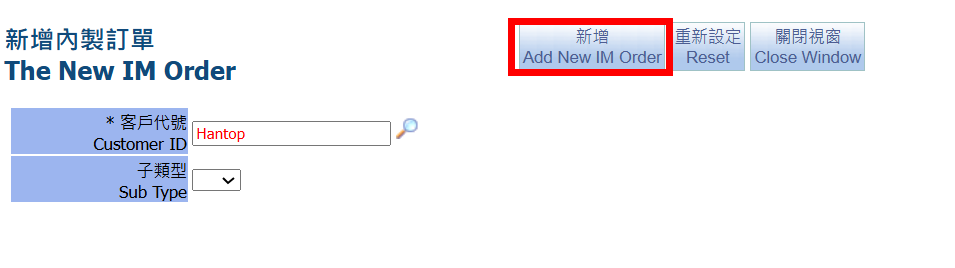
Enter the editing screen after adding
4.2. IM Edit

4.2.1. IM Item
In the editing screen, click on “Add Order Items” button. The following screen will appear

Pick items and fill Quantity => Submit Items
Close in the upper right corner to close the screen

Return the Quotation screen will see added items

4.2.2. Print
In the print screen, you can select the report name > Search to print.

4.2.3. Related Email
This screen displays related emails. You can also click "New Email" to create a new email.

4.2.4. Message/Petition
On this screen, you can search related message/ petition, or click New Message/New Petition to add them.

4.2.5. Related File
In this screen, you can upload related files, usually images or text files.

4.2.6. Related MO
This screen displays Manufacture orders related to the order

Related MO
Related manufacture orders will be show at this tab.

Create MO
Select the check box and click “Create MO “ to create new MO transaction.

Create MO Rework
After select the process, click button “Crate MO Rework” to create.

Order Item MOPF
To query the manufacturing order related to MRP push material

4.2.7. Related PO
Display purchase-related order items, purchase orders, etc.

The functions at the back is similar to that of sales orders. Please refer to the introduction of Sales Agreement.

4.3. Active IM Orders
This screen displays the active documents for all IM orders

4.4. Draft IM Orders
This screen displays the draft documents for all IM orders

4.5. Search IM Orders
This tab is to search all IM orders with all status.

4.6. My Approval
This screen displays all the IM orders that you need to approve, and you can approve documents in batches

5. Internal Quotes
Internal quotations can be converted into formal Internal Manufacturing Orders
5.1. Create Internal Quotes
Click “Create Internal Quotation” to add transaction

Click "Add New Quote" to create the transaction
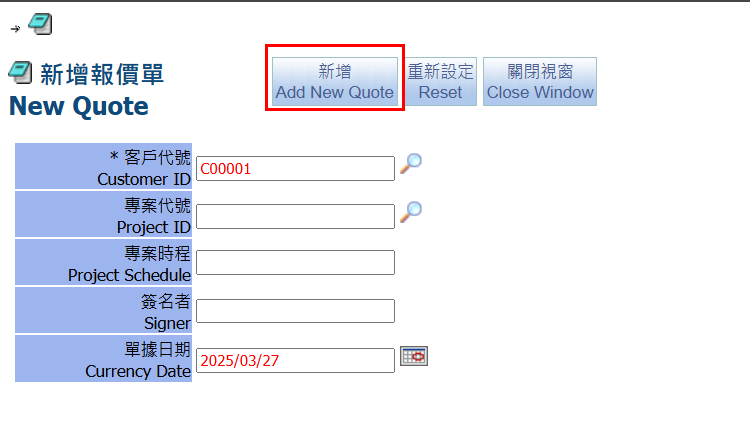
5.2. Edit Internal Quotes
Go to Internal Quotes editing screen to perform editing actions, such as adding new Internal Quotes item, etc.

5.2.1. Internal Quote Item
At Tab “Internal Quote Item”, click on “Add Quote Items”. The following screen will appear:

Check the box of the column Pick and fill in “Quantity”, pressing "Submit Items."
When finished, press close in the upper right corner to close the screen.

Return the Internal Quote screen will see added items:

5.2.2. Internal Quote Item (With stock Qty)
In this screen, you can see the available stock for each item.

5.2.3. Print
This tab is to print the forecast order report

5.2.4. Customer Setting
In this screen, you can set related payment settings and delivery information:

5.2.5. Related Internal Order
You can create IM order from internal quotes item,and search related internal order.

The pagination of several standard functions at the back is similar to that of sales orders. Please refer to the introduction of Sales Agreement.

5.3. Draft Internal Quotes
This tab is to search all draft internal quotes.

5.4. Unconfirmed Quotes
This tab is to search all unconfirmed quotes

5.5. Active Internal Quotes
This tab is to search all active internal quotes.

5.6. My Approval
Go to My Approval to approve order documents in batches

6 . Forecast Order
Display all forecast orders, and you can also add a new forecast order
6.1. Create Forecast Order
Click "Add New Forecast Order" to add new transaction.

The new screen is as follows, fill in the following information (* is required), and click “Add New Forecast Order” button after completion.


Enter the editing screen after adding

6.2. Forecast Order Edit
Go to forecast order editing screen to perform editing actions, such as adding new order items, etc.
6.2.1. Forecast Order Item
At Tab “Forecast Order Item”, click on “Add Order Items”. The following screen will appear

Check the box of the column Pick and fill in “Quantity”, pressing "Submit Items."
When finished, press close in the upper right corner to close the screen.

Return the Forecast Order screen will see added items:

6.2.2. Order Item (With stock Qty)
In this screen, you can see the available stock for each item.

6.2.3. Print
This tab is to print the forecast order report

6.2.4. Payment and invoice settings
In this screen, you can set related payment settings:

6.2.5. Forecast Memo
In this screen, you can fill in "Packaging Memo", "Payment Memo"...etc > Submit
Additionally, you can add memo using the subtab below

6.2.6. Related Order
In "Related Orders", we can create sales order from forecast order,
If needed, select New SA Item No and then select the forecast item to transfer to the order

The pagination of several standard functions at the back is similar to that of sales orders. Please refer to the introduction of Sales Agreement.

6.3. Active Forecast Order
This tab is to search all active forecast orders.

6.4. Draft Forecast Order
This tab is to search all draft forecast orders.

6.5. Search Forecast Order
This tab is to search all forecast orders with all status.

6.6. Forecast Order Report
Displays a report of forecast orders and can print it to pdf/ excel.

6.7. Forecast Compare with SA Report
Forecast orders compared to sales order amounts for a range period.
For example: the statistical period is 2024/01/01~01/31, and the comparison time is 2024/01/01~01/31

6.8. My Approval
Go to My Approval to approve order documents in batches

7. Internal Forecast
Display all internal forecast orders and add new orders
7.1. Create Internal Forecast

Click “Create New Internal Forecast” button. New screen opens. Fill information in columns. Click “Add New Internal Forecast” to create.

The Internal Order screen opens
7.2. Internal Forecast Edit
This screen allows you to edit orders, such as adding new order items

7.2.1. Internal Forecast Item
At Tab “Internal Forecast Item”, click on “Add Order Items”. The following screen will appear.

Pick item and fill quantity, click "Submit Item", and close the window in the upper right corner after completion.

Return the Internal Forecast Item screen will see added items

7.2.2. Order Item (With stock Qty)
In this screen, you can check the inventory status of each order item.

7.2.3. Print
Reports can be printed in this tab

7.2.4. Payment and invoice settings
You can set payment conditions and delivery Information on this tab

The pagination of several standard functions at the back is similar to that of sales orders. Please refer to the introduction of Sales Agreement.

7.3. Active Internal Forecast Order
This tab is to search all active internal forecast orders.

7.4. Draft Internal Forecast
This tab is to search all draft internal forecast orders.

7.5. Search Internal Forecast
This tab is to search all internal forecast orders.

7.6. Create Internal Forecasts

7.7. My Approval
You can go to My Approval to approve orders in batches

8. Sample Requests
Display all sample application forms, and you can also add sample orders
8.1. Create Sample Requests
Click "Create Sample Request" button to create a new sample orders.

Click “Create Sample Request” button. New screen opens

Click on the search icon to find the customer, the new screen opens

After filling in the customer ID, click button “Add New” to create

Enter the sample request edit screen. At the top is the delete button, copy Sample Requests, Auto Commit, submit and reset the value created

8.2. Sample Requests Edit
Sample Requests Item
At Tab “Sample Requests Item”, click on “Add Order Items”. The following screen will appear.

Pick item and fill quantity > Add the selected product, close the upper right corner to close the screen

Return the Sample Requests Item screen will see added items

8.2.1. Sample Requests Item (With stock Qty)
In this tab, you can see the available stock for each item.

8.2.2. Print
To print the Sample Request, select the report name > Search

8.2.3. Customer Setting
In this tab, you can set related payment settings.

8.2.4. Shipping Schedule

The pagination of several standard functions at the back is similar to that of sales orders. Please refer to the introduction of sales orders.

8.3. Active Requests
This tab is to search all active sample request orders.

8.4. Draft Requests
This tab is to search all draft sample request orders.

8.5. Search Requests
This tab is to search all sample request orders with all status.

9. Create SO Shipping
After finish Delivery schedule on Sale Agreement, and sign Sale Agreement to Active and define Warehouse, can create SO Shipping.

On Order Delivery Schedule, click “New Shipping” button, the following screen appears.

Generally, shipping orders newly added from the shipping schedule items will not bring in inventory information such as batch number, storage location, inventory weight, etc.
Pick All items and click “Create Shipping Order” button.

Therefore, here is a demonstration of how the A1 system commonly generates “Express Shipping by Item Stock”. The resulting shipping orders are selected from inventory, so the batch number and inventory weight can be clearly viewed. Customers or orders can be used to search, and the system will list All inventory items that can be shipped. The same order serial number may be due to multiple inventory batch numbers, so you only need to select the required batch number. After generation, the system will automatically preset the merge details, and order items with the same material number will be estimated for shipment. Items and automatically assign inventory to actual shipped items

After it is generated, the screen will switch to the draft document. Click on the shipping transaction ID to enter editing.

Click on the SD ID, example “UCSD24020003”, will open the SD edit screen,
The SD screen, we have parts.
9.1. Edit SD

At the top is the delete button, auto approve, submit, reset the value created.
Below is the basic information about SD: warehouse code, customer ID, status, transaction date.... -> check all information and correct if need change.
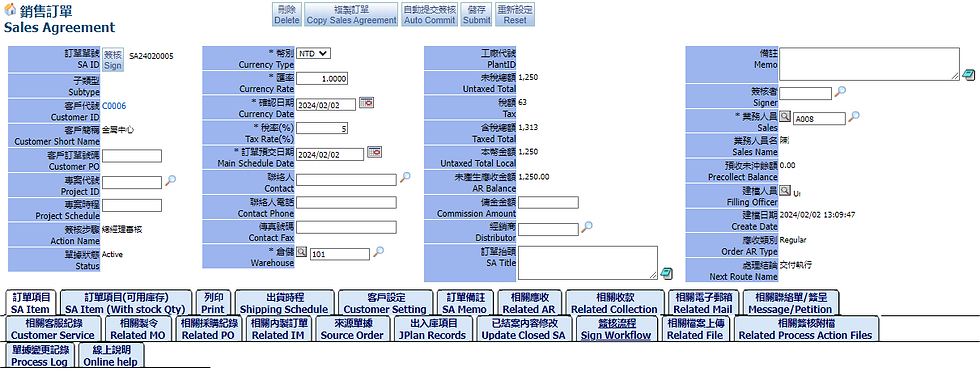
9.2. InventoryJournalPlan
This local record is the result of merging details based on order items.

The actual shipping items below will record the shipping records of actual inventory details.

You can quickly create the receivable at the bottom. Before create, you must first confirm that the SA Shipping is in active or close.

This tab can query the inventory of expected shipping items. The inventory may not be displayed correctly due to the merged details of shipping order items.
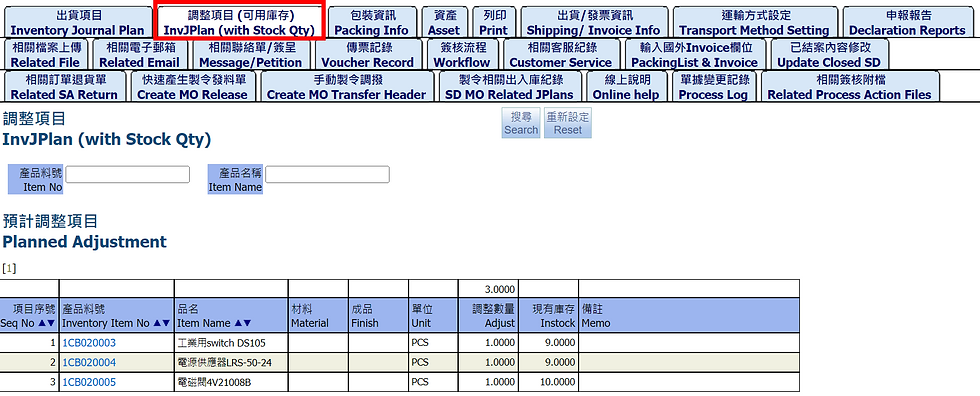
9.4 Packing info
Search related packaging information

9.5. Asset

9.6. Print
Reports related to shipping orders can be printed as PDF files.
Enter the report name > Search

9.7. Shipping/ Invoice Info
To query shipping and invoice information related to shipping orders
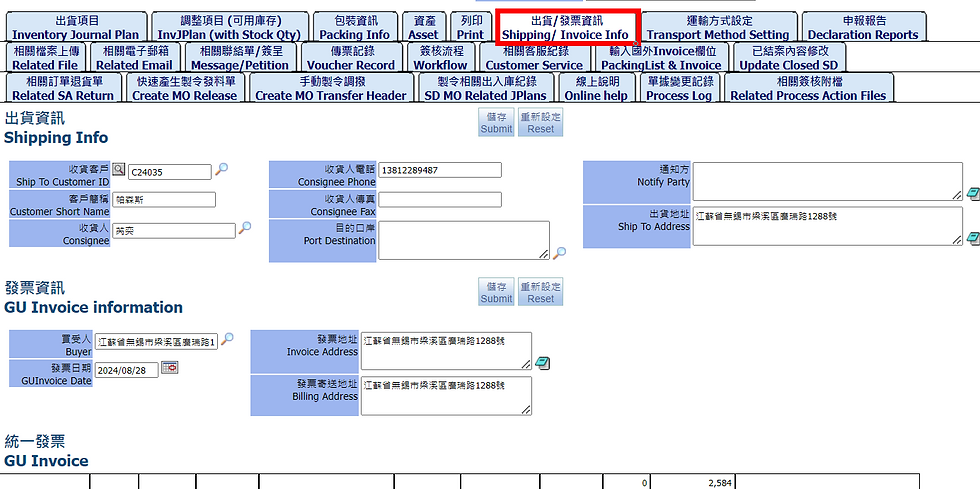
9.8. Transport Method Setting
This is to set the conveyance and distance to calculate carbon emissions. For details, please see ESG Management

9.9. Declaration Reports
To query declaration information, such as packaging declaration, good declaration, etc.

9.10. Related File
In this screen, you can upload related files, usually images or text files.

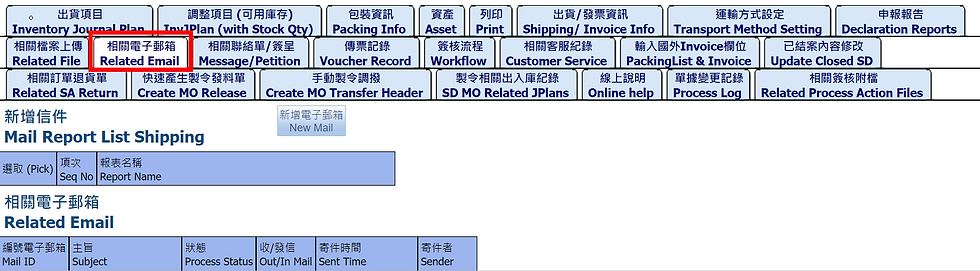
9.11. Related Email
This screen displays related emails. You can also click "New Email" to create a new email.
9.12. Message/Petition
On this screen, you can query related Messages/ Petitions, or click "New Message"/ "New Petition" to add them.

9.13. Voucher Record
Can view and create new voucher in tab Voucher Record. After clicking "Create Voucher" button, you will be transferred to Voucher Management to quickly generate voucher. If a voucher has been created, it will be displayed in tab Voucher Record.

9.14. Workflow
In this screen, you can view the approval process currently defined for this document.

9.15. Customer Service
To display records of transactions with customers

9.16 Packing List & Invoice
This tab, you can fill in the related packaging list and invoice of the shipping order from abroad.
Note: These fields is in international standard information

9.17. Update Closed SD
Can be modified content on this screen. The content cannot be changed when the document status is closed. However, some comment fields can be changed here without affecting important data.

9.18. Related SA Return
You can check the relevant order return transactions, or click "Create SA Return" to generate a return document. For details, please see "8.Create SA Return"

9.19. Create MO Release

9.20. Create MO Transfer Header
Click "Create MO Transfer" to generate a transfer transaction.

9.21. SD MO Related JPlans
Fill in the search criteria to search records related to the MO order

MOrder ID can be found in the shipping items

9.22. Online help
On this screen, you can view online documents or help content. If you need to upload files, you need to enter the setting page of the approval process.

9.23. Process Log
In this screen, you can view the change record of this shipping transaction, which will record the change person, change time and change field.

In this screen, you can view the attachment records of the approval form. If you need to attach files, you need to go the approval form.

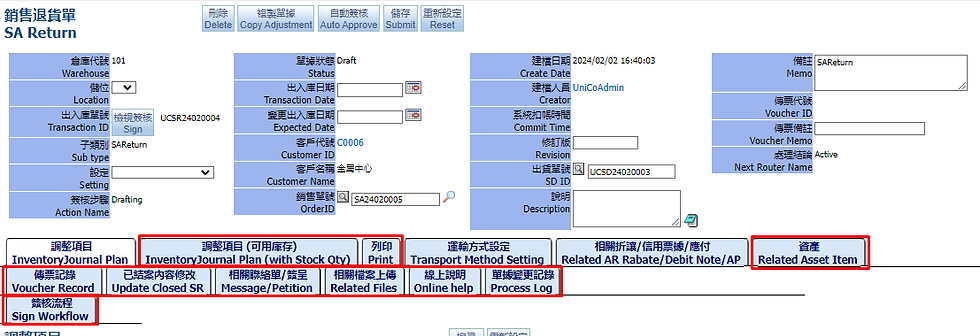
10. Create SA Return
In Sales Agreement screen, you can see shipping transaction ID in Shipping Record at the bottom of tab Shipping Schedule, the transaction is close
In Other Warehousing Record, click “New SA return”


After adding an SA return transaction, you will go the following screen:

Choose setting:
Note:
Shipping: goods are shipping
ReShip: return goods, then supplier will reship goods
NoReship: return goods, but the supplier will not reship goods
After completing, click "Submit" to create new transaction.
After creating, enter the editing screen and click “Add SA Return Items”.

Search for items > Pick choose item > Submit, then close the upper right corner to close the screen

Another method is to generate a SA Return from SA shipping transaction. This method is more convenient. You can directly bring in the source shipping item information and SA information. After choose the items that need to be returned, the return order can be generated (the shipping transaction needs to be closed first)

SA returns after created can be viewed below. Click on the transaction ID to go to the return screen.


The system will automatically bring in the return item and link it to the source shipping transaction and SA order, you can be view on the right.

At "Related AR Rabate/Debit Note/AP" tab, you can create related discounts/ credit notes/ payables to handle discounts or payments due to returns.

The other tab is similar to the SA shipping transaction. Please refer to the description of SO Shipping.
11. Search Orders
This screen can search all orders, such as sales orders, quotations, IM orders, etc.
As well as Order Item and Confirmed Sales Items

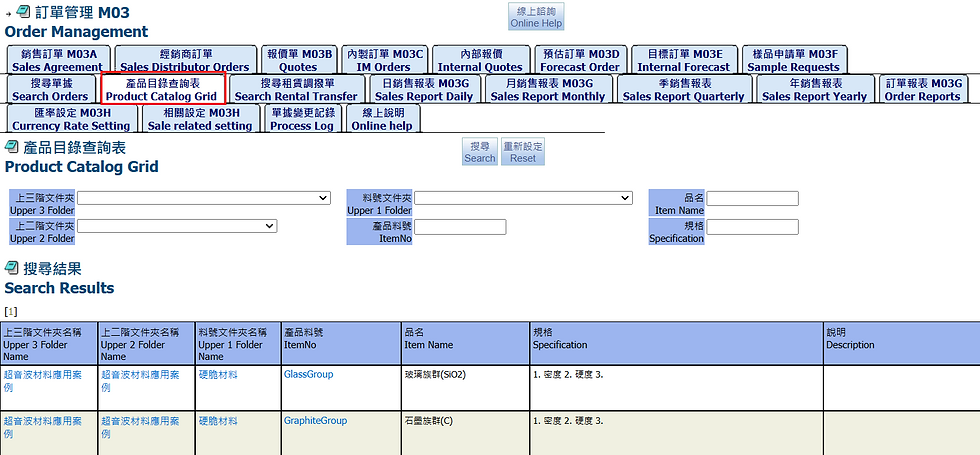
12. Product Catalog Grid
This tab is to check product catalog
13. Search Rental Transfer

14. SA Summery report
14.1. Sales Report Daily

On “Sale Report Daily” tab, there are 6 small tabs: Date, Date & Customer, Date & Items, Items, Customer & Items, Customer.
14.1.1. Date
This tab is to search SA quantity and total amounts by date.

14.1.2. Date, Customer
This tab is to search SA quantity and total amounts by date and customer.

14.1.3. Date, Items
This tab is to search SA quantity and total amounts by date and item no.

14.1.4. Items
This tab is to search SA quantity and total amounts by item no.

14.1.5. Customer, Item
This tab is to search SA quantity and total amounts by customer and item no.
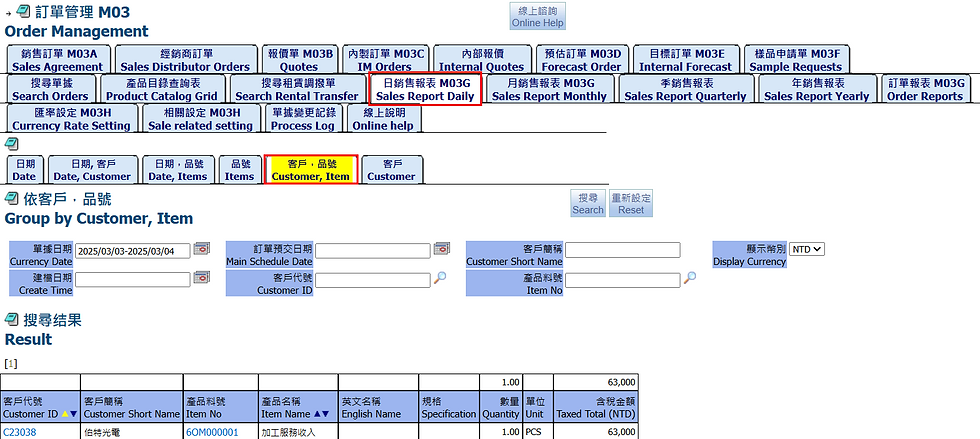
14.1.6. Customer
In “Customer” tab, it includes some fields: customer ID, Customer Short Name, Display currency. Enter your search conditions. You can find result in the report.

14.2. Sales Report Monthly
On “Sale Report Monthly” tab, there are 2 small tabs: Customer and Items

14.2.1. Customer
On “Customer” tab, click on the search icon to find the customer, the new screen opens.

Pick on Customer ID => Search

14.2.2. Items
This tab is to search sales amount monthly by items

14.3. Sales Report Quarterly
On the "Sales Report Quarterly" tab, there are four options: customer, sales, order ID and item no.

14.3.1. Customer
Click on the search icon to find the customer, the new screen opens. Pick on Customer ID => Search.


14.3.2. Sales
This tab is to search sales total amount by sales person

14.3.3. Order ID
This tab is to search sales total amount by Order ID.

14.3.4. Item
This tab is to search sales total amount by Item No.


14.4. Sales Report Yearly
In the "Sales Report Yearly" tab, there are four options: customer, salesl, order ID and Item no.

14.4.1. Customer
Click the magnifying glass to select customer ID> select and press search


14.4.2. Sales
This tab is to search sales total amount yearly by sales person.

14.4.3. Order ID
This tab is to search sales total amount yearly by OrderID.

14.4.4. Item
This tab is to search sales total amount yearly by item no.


14.5. Order Reports
This screen is to print order reports.

14.5.1. SA Delivery Shipped Detail
Search reports based on shipping schedule details

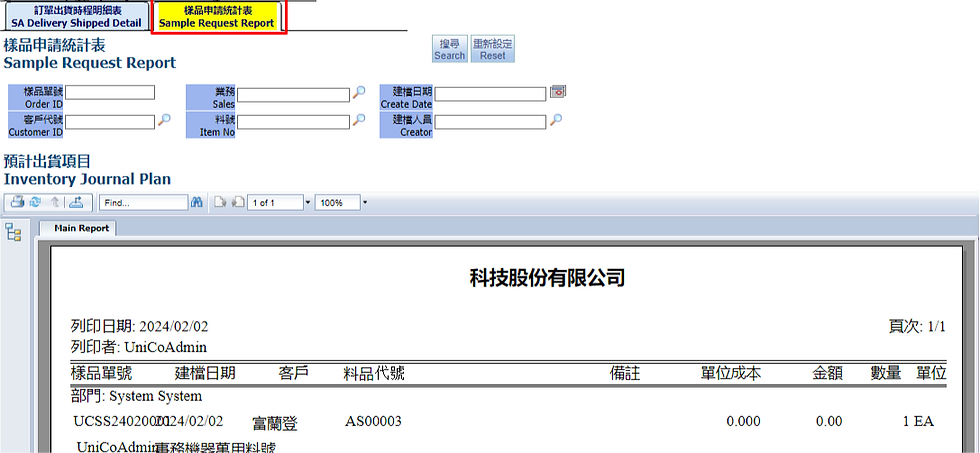
14.5.2. Sample Request Report
Search the report according to the sample request transactions.
15. Currency Rate Setting

15.1. Customer Currency Rate
Can set exchange rate in "Currency Rate Setting"

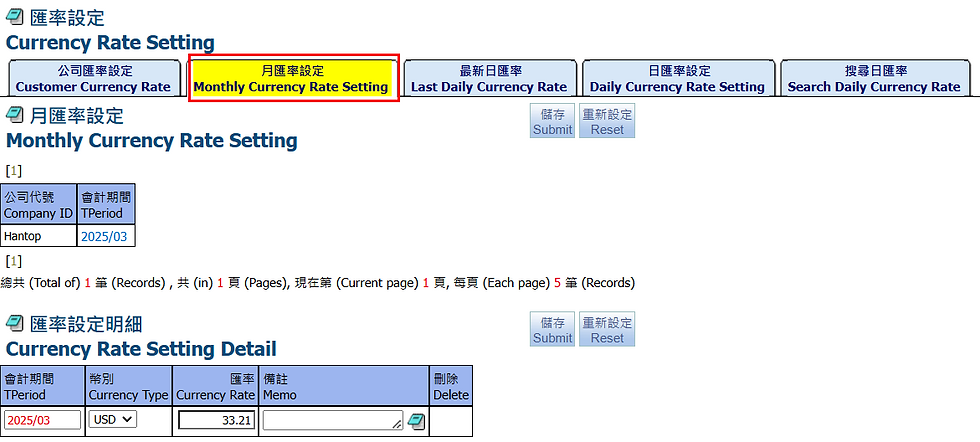
15.2. Monthly Currency Rate Setting
This tab is for setting currency and exchange rate based on accounting period
15.3. Last Daily Currency Rate
This tab is to view daily exchange rates

15.4. Daily Currency Rate Setting
Can set daily exchange rate in this tab

15.5. Search Daily Currency Rate
Select the range of Currency Date > Search daily currency rate

16. Sale related setting
You can go to SA Related Settings > such as delivery date remarks and set items

17. Process Log
In this screen, you can view the change records in order transactions, which will record the change person, change time and change field.

18. Online help
On this screen, you can view online documents or help content. If you need to upload files, you need to enter the setting page of the order approval process.

You can add filter items

After adding

End.
